Station 02
Find the game folder
Everything in this guide is copied into one directory: the one holding Blasphemous.exe. Here is how to open it on Steam, on GOG, and by hand.
The target
Why one folder decides everything§
Everything in this guide is copied into a single directory: the one holding Blasphemous.exe.
Not Blasphemous_Data, not a Mods folder, not Documents. That one.
The reason is mechanical. When a Windows program starts, the loader looks for the DLLs it needs in the program’s
own directory before it looks in the system directories. BepInEx exploits exactly that: it puts its own
winhttp.dll beside the executable, the game asks Windows for winhttp, and the loader hands
over BepInEx’s copy because it found that one first.
One directory further away and the trick does not happen at all. The game starts normally, no folders are created, nothing appears in any log, and there is no error to read — which is why "I installed it and nothing happened" is nearly always this.
Storefront
Opening it from Steam§
Open your Steam library and find Blasphemous.
The base game entry, not a DLC entry.
Right-click it → Manage → Browse local files.
Explorer opens directly in the folder you want. On older Steam builds this is Properties → Local Files → Browse….
Leave the window open.
Every remaining step in this guide happens in that window or one below it.
A default Steam install puts it here:
C:\Program Files (x86)\Steam\steamapps\common\BlasphemousIf you keep games on another drive, the same path appears under your extra library folder instead. The install shown in this guide sits on a second drive:
F:\SteamLibrary\steamapps\common\BlasphemousMultiple Steam libraries
Steam → Settings → Storage lists every library folder you have and which drive it is on. Browse local files always opens the right one, so you never actually have to know.
Storefront
Opening it from GOG§
In GOG Galaxy, open the Blasphemous page.
From your Owned games list.
Click the settings icon next to Play → Manage installation → Show folder.
Explorer opens in the install directory.
A default GOG install looks like this:
C:\GOG Games\BlasphemousIf you installed from a GOG offline installer rather than through Galaxy, the folder is wherever you pointed the installer — the executable name is the same either way.
Fallback
Finding it by hand§
If neither launcher is cooperating, search for the executable itself. Open the Start menu, type
Blasphemous.exe, and use Open file location on the result. Or, in an Explorer window on the drive
you think it is on, search for:
Blasphemous.exeDo not confuse it with Blasphemous 2
They are separate games with separate folders and separate save directories. Blasphemous 2 is a different
Unity version with a different scripting backend, and neither of these plugins loads into it. The folder you want
contains Blasphemous.exe, not Blasphemous 2.exe.
Confirmation
What it should contain§
Before you copy anything in, a clean install of the game holds roughly this. Yours may differ slightly — the
storefront you bought from decides which platform DLLs are present — but Blasphemous.exe,
UnityPlayer.dll and Blasphemous_Data are always there together.
Blasphemous/
├── Blasphemous_Data/                         all the game content lives in here
├── Blasphemous - Wallpapers/
├── Goodies/
├── Blasphemous.exe                           the target — everything goes beside this
├── UnityPlayer.dll                           the Unity 2017.4 runtime
├── changelog.txt
└── (storefront DLLs)                         Galaxy64.dll, GalaxyCSharpGlue.dll, steam_api64.dll …
And this is the same folder after BepInEx is installed, which is where you will be at the end of the next station. Four new things: three loose files and one folder.
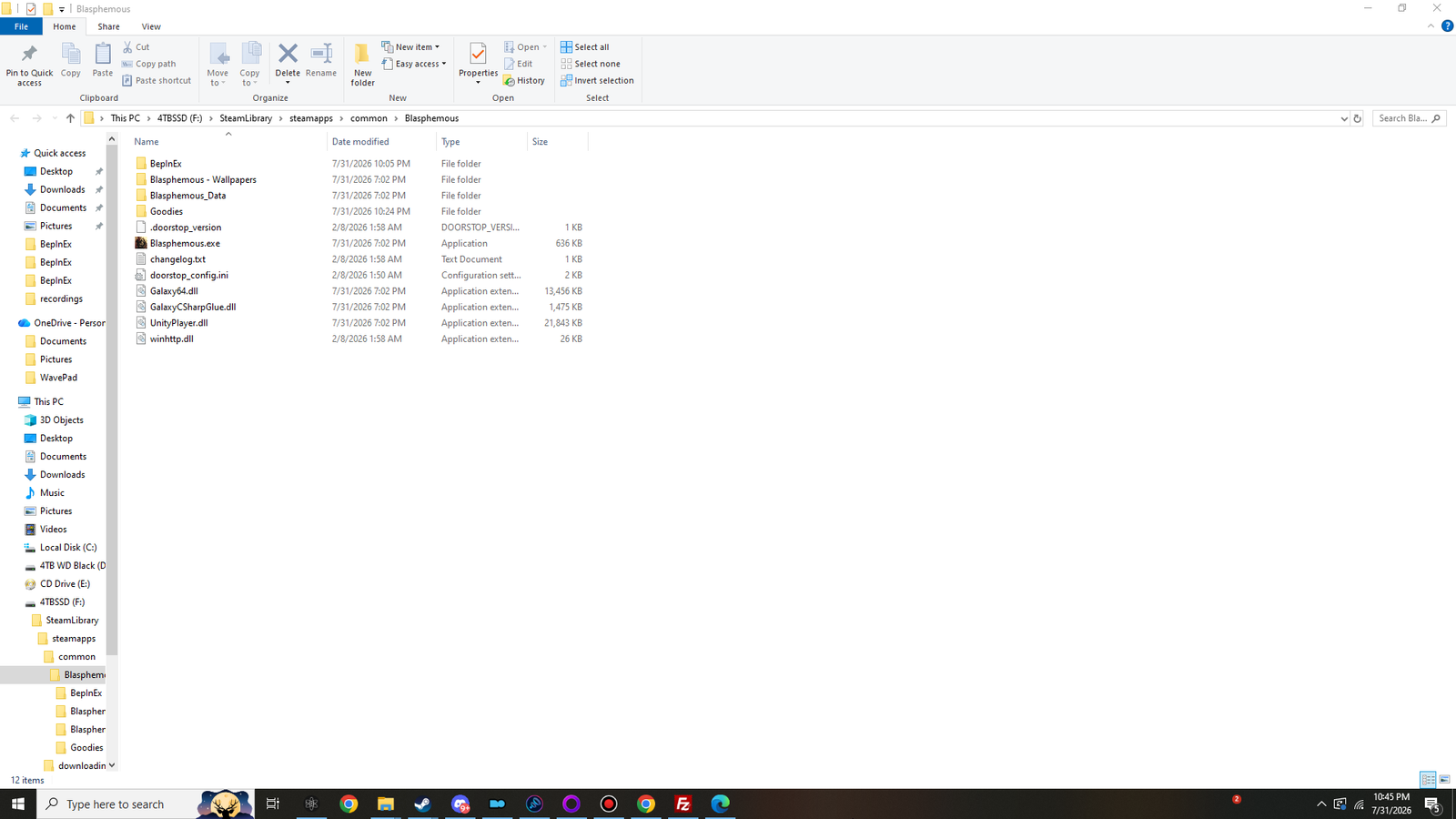
Keep this window open
Station 03 extracts a zip straight into this folder. Station 04 copies two DLLs into a subfolder of it. If you
can see Blasphemous.exe in front of you right now, you are in the right place.