Station 06
Ungodly GFX
Internal render scaling, a genuine interface-aspect bug fix, real multi-monitor control, and the post-processing chain the game ships but barely uses.
Controls
Hotkeys and the panel§
Everything applies the moment you move a control. Save to config file is only about surviving a restart. Restore vanilla puts every value it touched back where the game had it.
| Key | Does |
|---|---|
| F10 | Open or close the settings window. The mouse pointer appears with it and goes away again when it closes. |
| F11 | Toggle the on-screen diagnostics readout. |
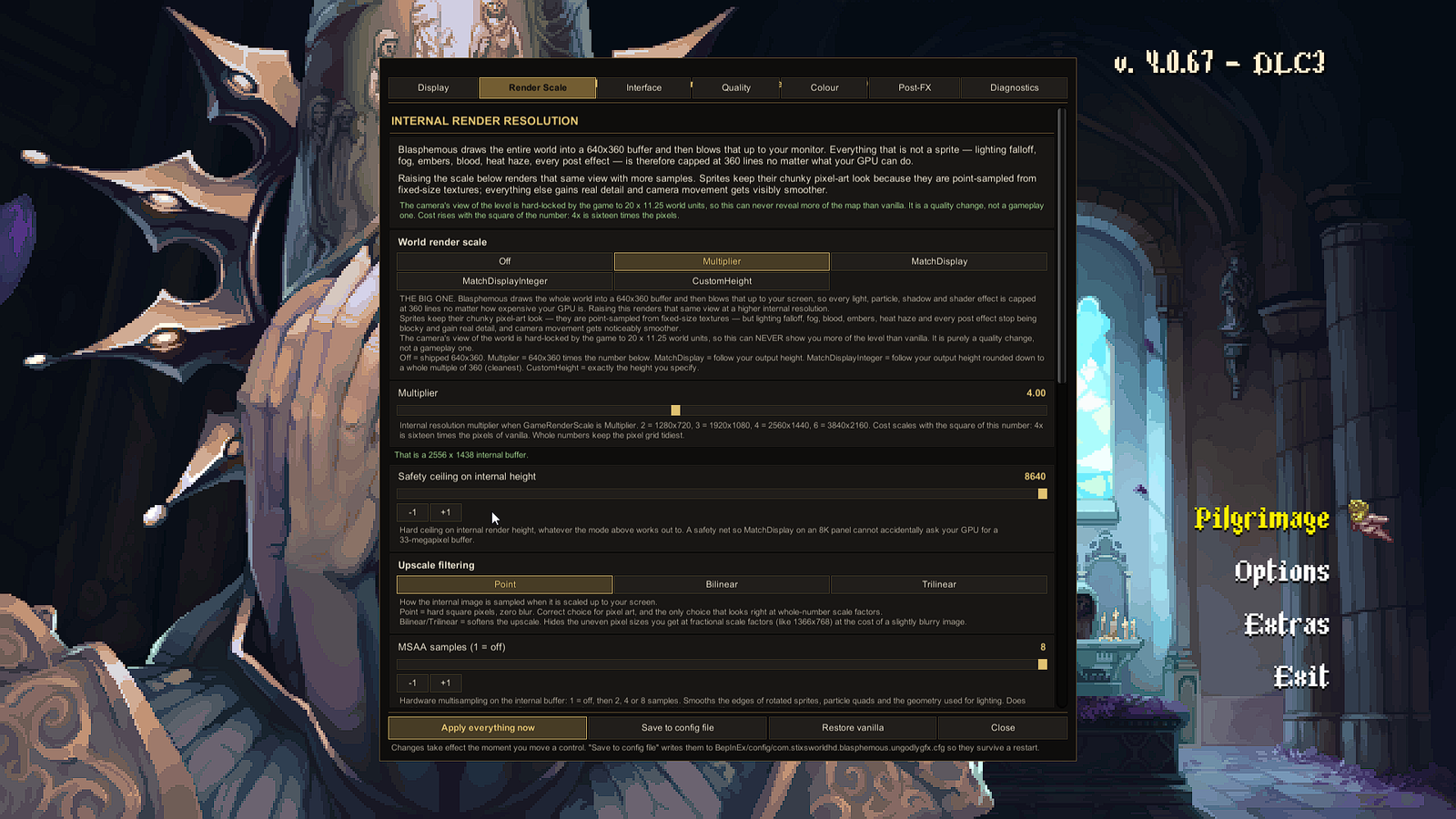
Seven tabs: Display, Render Scale, Interface, Quality, Colour, Post-FX and Diagnostics. Every control carries its own description underneath, pulled from the same source as the text in the configuration file, so the two can never disagree.
The big one
Internal render scale§
Blasphemous draws the entire world into a 640×360 render target and then blows that up to your monitor. The interface goes into a second 640×360 target. So everything that is not a sprite — lighting falloff, fog, embers, blood, heat haze, every post effect — is capped at 360 lines no matter what your GPU can do.
GameRenderScale re-allocates that buffer at a higher resolution. Sprites keep their chunky pixel-art look,
because they are point-sampled from fixed-size textures. Everything else gains real detail, and camera movement gets
visibly smoother.
| Mode | What it renders into |
|---|---|
Off | The shipped 640×360. Vanilla. |
Multiplier | 640×360 times your number. 2 = 1280×720, 3 = 1920×1080, 4 = 2560×1440, 6 = 3840×2160. |
MatchDisplay | Follows your output height exactly. |
MatchDisplayInteger | Follows your output height rounded down to a whole multiple of 360. The tidiest option. |
CustomHeight | Exactly the height you specify. |
This cannot show you more of the level
The Game Kitchen hard-patched their copy of ProCamera2D. SetScreenSize() ignores the size it is
handed and always assigns an orthographic size of 5.625, giving a world extent of exactly 20 × 11.25
units, and the only function that would otherwise recompute a size from the buffer’s pixel height runs once in
Awake() and never again.
The camera’s view is a fixed constant, completely decoupled from the buffer it draws into. Enlarging the buffer gives more samples of the same 20 × 11.25 world units. That is supersampling — a quality change, not a gameplay one. No competitive advantage, and none is possible.
The one hard rule
The buffer must stay 16:9. An orthographic camera derives its horizontal extent from its target’s aspect
ratio, so a 16:10 buffer would widen the visible world by about 11% — which would be a gameplay change.
The plugin forces width = height × 16 ÷ 9 and refuses to do anything else.
What it costs
Cost rises with the square of the number. 4× is sixteen times the pixels of vanilla. On a modern GPU this is still a 2D game and 4× is usually free; on integrated graphics, start at 2 and work up.
| Setting | Does |
|---|---|
Multiplier | The scale factor when the mode is Multiplier. Whole numbers keep the pixel grid tidiest. |
MaxInternalHeight | A hard ceiling on internal height whatever the mode works out to. A safety net so MatchDisplay on an 8K panel cannot ask your GPU for a 33-megapixel buffer. |
Upscale filtering | Point is hard square pixels with zero blur — correct for pixel art, and the only right answer at whole-number scale factors. Bilinear and Trilinear soften the upscale, which hides the uneven pixel sizes you get at fractional factors like 1366×768, at the cost of a slightly blurry image. |
MSAA samples | Hardware multisampling on the internal buffer: 1 = off, then 2, 4 or 8. Smooths the edges of rotated sprites, particle quads and the geometry used for lighting. |
ReleaseOrphanedTargets | On by default. The game reallocates both render targets whenever a level’s shared objects reload and never releases the previous pair. This frees the ones the plugin displaces instead of letting them pile up over a long session. |
A real fix
The interface aspect bug§
This one is a bug in the retail build, not a preference.
ScreenManager.FitScreenCamera() computes a fit scale from your window and then assigns the resulting
orthographic size to both the virtual camera and the interface camera. But the interface camera renders into a
fixed 16:9 buffer. Whenever the fit is driven by width rather than height, the interface camera ends up zoomed out
relative to its own buffer and the HUD renders undersized.
| Resolution | Aspect | Interface error |
|---|---|---|
| 1920×1080 | 16:9 | none |
| 3440×1440 | 21:9 | none — it fits vertically |
| 1920×1200 | 16:10 | about 10% too small |
| 1280×1024 | 5:4 | about 20% too small |
| 1024×768 | 4:3 | about 25% too small |
16:9 and most ultrawides happen to coincide, which is why this shipped unnoticed for years.
FixUiCameraAspect is on by default and derives the interface camera’s zoom from its own buffer
instead. It works whether or not you also override the fit mode.
Alongside it, UiScale resizes the HUD and menus independently of the world — always uniformly, so
it can never come out stretched.
How the picture meets your monitor
Screen fit modes§
This replaces the game’s two-option Pixel Perfect / Scale toggle with six:
| Mode | What it does |
|---|---|
PixelPerfectInteger | Whole-number upscales only, with a configurable ceiling. Every pixel is an identical square and there is zero shimmer when the camera pans. Start here. |
AspectFit | The largest fractional fit that still preserves 16:9. |
FillCrop | Zoom until there are no bars. The overflow is cropped off. |
Stretch | Fills both axes by widening the display quads non-uniformly. It distorts the image. Included because people ask for it. |
Custom | AspectFit multiplied by a number you choose. |
Untouched | Leave the shipped logic alone. |
There is a configurable border colour for the bars that whole-number scaling leaves behind.
Beyond what the engine exposes
Displays, monitors and windows§
Unity 2017.3 has no Screen.fullScreenMode — that arrived in 2018.1 — and
Screen.resolutions only ever reports the primary display. So the plugin goes to Win32 directly:
EnumDisplayDevices and EnumDisplaySettingsEx for every mode of every attached monitor, plus
window-style editing for borderless placement.
- Every monitor is detected with its real name, current mode, virtual-desktop origin and full mode list.
- Every resolution is listed with its computed aspect ratio — named where it matches a common one within 1%, reduced to an integer ratio otherwise — and flagged when 640×360 tiles into it exactly.
BestPixelPerfectpicks the largest mode that is a whole-number multiple of 640×360, falling back to the largest integer scale available if your panel has none.- Borderless fullscreen and borderless windowed can target any monitor.
Exclusive fullscreen is primary-monitor only
An engine limitation, not a plugin one — Unity 2017.3 locks exclusive fullscreen to the primary display and
no amount of plugin code changes that. Use BorderlessFullscreen for any other monitor.
If the native path fails for any reason, everything falls back to Screen.resolutions and the Diagnostics
tab says so.
Already in the game, barely used
Post-processing§
Blasphemous ships a complete image-effect chain — BaseCRTEffect plus a separate
CRTScanlineEffect, with CRT/Blur, CRT/Postprocess and
CRT/FinalPostprocess already compiled into the build. The game only exposes it as a short preset list
behind its own Render Modes menu.
Every parameter is public, so the plugin drives them directly: blur, a luminance bleed that behaves like bloom, chromatic aberration, input and output levels, brightness, contrast, saturation, grain, vignette, mask, curvature, interference, and the full scanline pass.
Zero out the retro-specific values — mask strength, curvature, noise, interference — and what is left is a
genuinely useful colour grader with no CRT look at all. GamePreset mode loads one of the game’s own
shipped presets by index, using the exact call path its options menu uses.
Post-processing and high render scale fight each other
BaseCRTEffect allocates its own internal texture sized from Screen.width and
Screen.height, and swaps the camera’s target texture during OnPreCull. Running it
alongside a high GameRenderScale means both systems are driving the same camera’s target.
Use one or the other. The plugin warns about this in the config file and in the panel, and defaults
post-processing to Untouched for exactly this reason.
The rest of it
Quality, latency and light§
- VSync and a framerate cap.
- Max queued frames — worth having in a game built around parry timing, since it trades a little throughput for a shorter path between your keypress and the picture.
- Anisotropic filtering, texture quality, MSAA, particle raycast budget, LOD bias, soft particles, reflection probes and async upload tuning.
- Ambient light override with a colour tint, giving you the full range instead of the game’s own roughly 0.08–0.39 grey slider. It re-asserts itself on an interval, because the game’s options menu overwrites the same value every time it opens.
Where it lives
The configuration file§
<game folder>\BepInEx\config\com.stixsworldhd.blasphemous.ungodlygfx.cfg117 settings across eight sections: 01 General, 02 Display, 03 Render Scale,
04 UI Scaling, 05 Quality and Performance, 06 Colour and Light,
07 Post-Processing, 08 Overlay.
Every entry carries its type, its default, its acceptable range or value list, and a plain-English note on what changing it does to the game you are looking at. The in-game window shows the same text under each control, pulled from the same source.
Editing it by hand
Close the game first. The plugin writes the file when you press Save to config file, so a running game will overwrite whatever you typed. Editing while closed and launching afterwards works exactly as you would expect.
Read this
Limitations, stated plainly§
No custom shaders
New shaders for a Unity game have to be compiled into an AssetBundle by the Unity Editor, and that is not something a
plugin can do at runtime. So there is no SMAA here, no sharp-bilinear upscale filter, no custom bloom and no LUT
colour grading. Every visual gain in this plugin comes from supersampling, render-target configuration,
QualitySettings, RenderSettings and the post-processing chain the game already ships.
Any mod that claims otherwise without shipping a bundle is not doing what it says.
Interface canvas handling is adaptive by necessity
VirtualCanvasScaler decompiles to an empty CanvasScaler subclass — its real settings
live in scene and prefab data that cannot be read from the assemblies. Rather than guess, the plugin handles every
render mode and every CanvasScaler mode explicitly at runtime and applies its correction through
whichever one is actually in charge. ConstantPhysicalSize canvases are deliberately left alone rather
than fought with.
What has been playtested and what has not
The author is direct about this, so this guide will be too. The interface fault reported against 1.0.0 was reproduced
from a screenshot, traced to PlayMakerGUI.OnGUI in the decompile, and fixed in 1.1.0; the pointer
handling landed in 1.2.0. Those parts are playtest-corrected.
The render-scaling, display and post-processing systems have been statically verified: the DLL compiles clean
against the exact Managed assemblies from a real install, targets the correct v2.0.50727
runtime, and every private field it reflects into — currentWidth, currentHeight,
fitScale, realFitScale, fitDimension, mode,
gameRenderTexture, uiRenderTexture — was checked byte for byte against the decompiled
ScreenManager.
A safe starting configuration
GameRenderScale = Multiplier at 2×, ScreenFitMode = PixelPerfectInteger,
everything else default. If something looks wrong, set VerboseLogging = true and the log will trace
every buffer rebuild, every canvas it touches and every monitor mode it found.