Four folders, one log file and two hotkeys. If all six checks pass, the install is finished and correct.
Six checks. Every one of them has a screenshot of a working install next to it — click any
picture to open the untouched 1920×1080 original and compare it against your own screen properly.
⁂All six should already pass
If you followed stations 03 and 04, this page is a formality. It exists so that when something misbehaves three
weeks from now, you have a definition of "correct" to measure against.
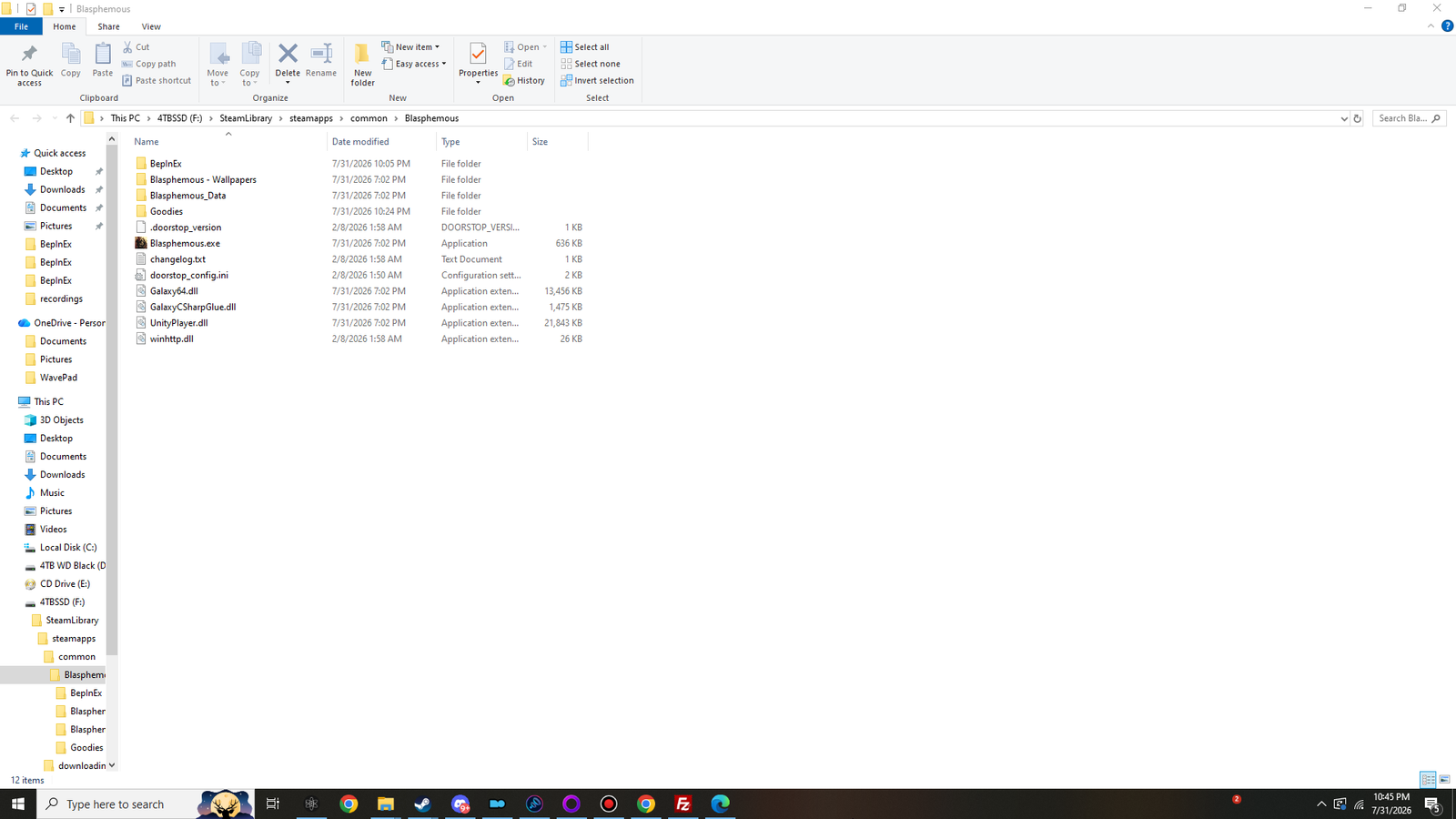
Open the folder holding Blasphemous.exe. Four things that were not there before the install should be:
winhttp.dll — around 26 KB. The proxy. If this is missing, nothing else matters.
doorstop_config.ini — around 2 KB. Tells the proxy what to start.
.doorstop_version — 1 KB. A version stamp; Explorer may hide it if you have hidden files off.
BepInEx\ — a folder, sitting next to Blasphemous_Data.
Click to view at full size ↗The game folder after BepInEx is installed. winhttp.dll, doorstop_config.ini and .doorstop_version sit beside Blasphemous.exe, and the BepInEx folder has appeared next to Blasphemous_Data. Shown at 1280×720 — the original is 1920×1080.
⚠If winhttp.dll is missing but you know you copied it
Check your antivirus quarantine before copying it back. A proxy DLL beside a game executable is a pattern some
security products flag on sight, and it will keep removing it until the folder is excluded.
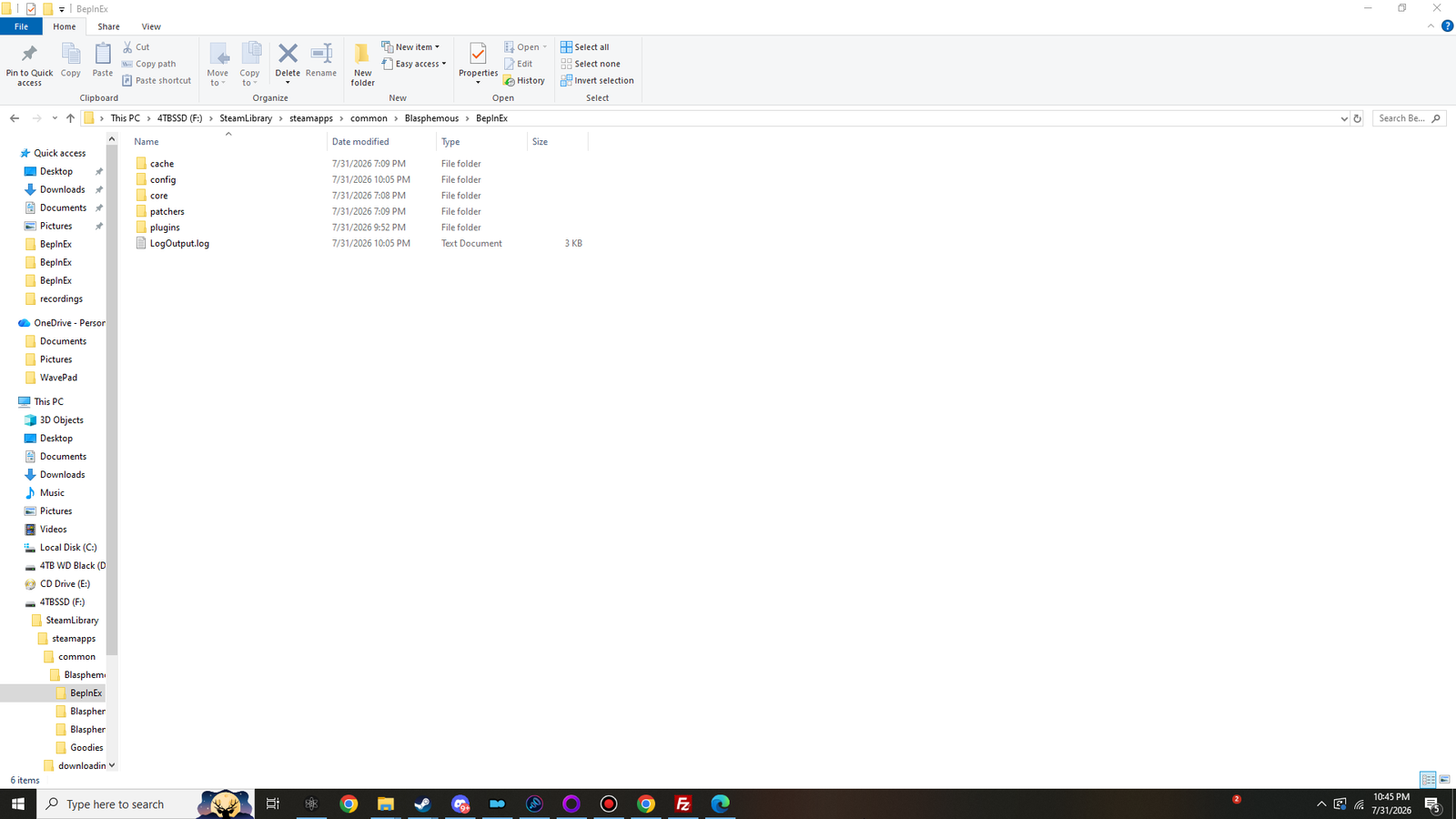
Open BepInEx. Six items: cache, config, core,
patchers, plugins and LogOutput.log.
Click to view at full size ↗Inside BepInEx after one launch. core and patchers ship in the zip; cache, config, plugins and LogOutput.log are written by the first run. Shown at 1280×720 — the original is 1920×1080.
Item
Should exist because
core
It shipped inside the zip. If it is missing, the extract went to the wrong level.
patchers
Also from the zip. Empty is correct — nothing here uses preloader patches.
cache
Written on the first launch. Its presence proves BepInEx actually ran, not just that files were copied.
config
Written on the first launch, holding BepInEx.cfg.
plugins
Written on the first launch. Contents checked below.
LogOutput.log
Written on every launch. A few KB is normal.
✖Only core and patchers present?
Then the files were copied but BepInEx has never run. Launch the game once, quit, and look again.
If they still do not appear, go to station 03’s diagnosis list.
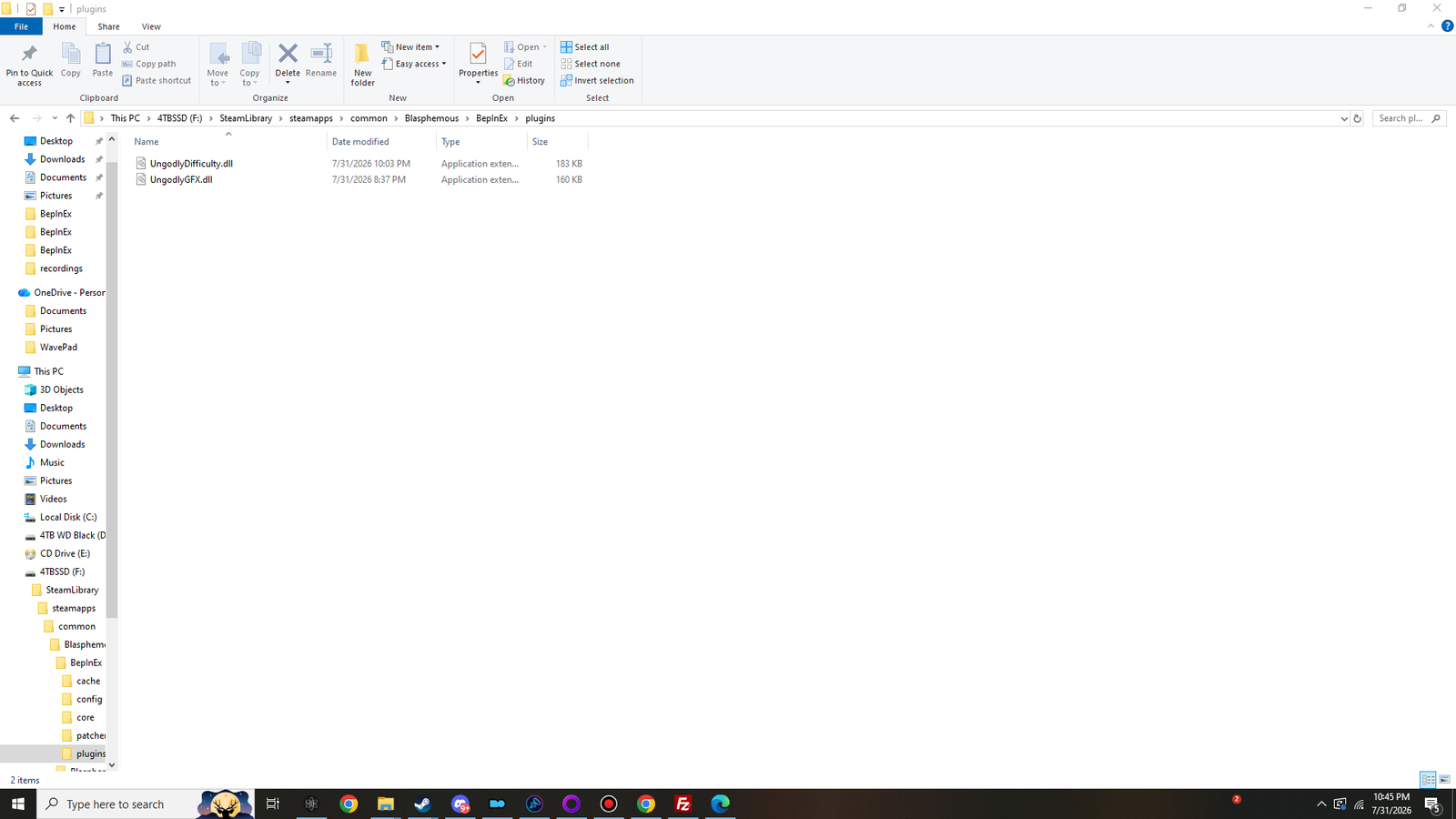
Open BepInEx\plugins. Exactly two files, loose, no subfolders:
File
Size
Version
UngodlyDifficulty.dll
196 KB (200,192 bytes)
1.2.0
UngodlyGFX.dll
160 KB (163,840 bytes)
1.2.0
Click to view at full size ↗Both plugins installed. Loose DLLs directly in plugins — no sub-folder, no rename. Sizes read 183 KB and 160 KB. Shown at 1280×720 — the original is 1920×1080.
Sizes matter more than they look. A DLL that reads a few kilobytes is usually an HTML error page that got saved under
a .dll name, and it will fail to load with a message about a bad image format.
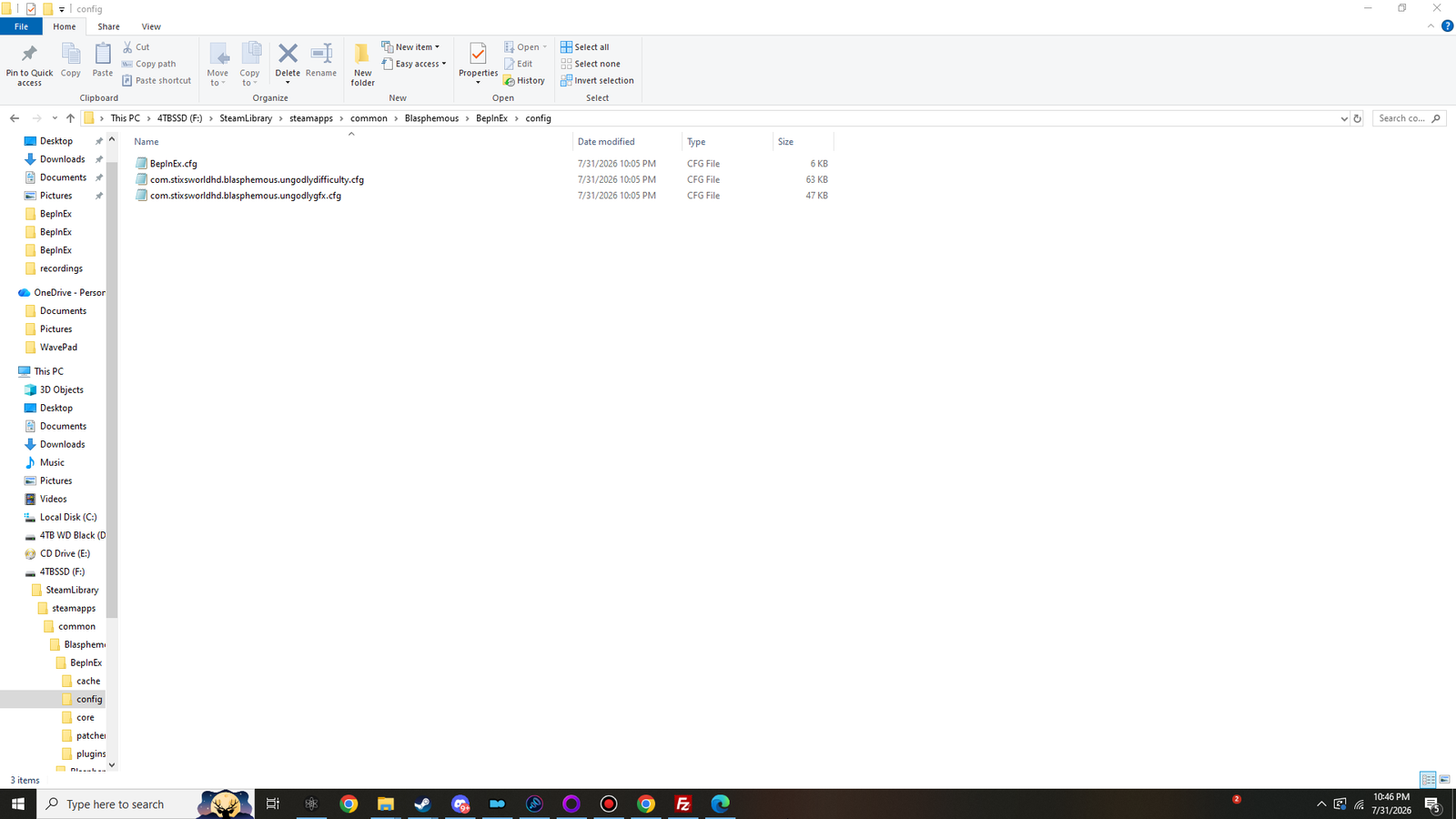
Open BepInEx\config. After a launch with both plugins installed there are three files:
Click to view at full size ↗The config folder after the first modded launch. Both plugin configuration files have written themselves — 63 KB and 47 KB of documented settings you never had to create. Shown at 1280×720 — the original is 1920×1080.
Ungodly Difficulty 1.2.0 also creates BepInEx\config\UngodlyDifficulty\, holding one small text
file per save slot — director_slot0.txt and so on — recording where the difficulty had got
to. It does not exist until the game saves for the first time, so an empty spot here on a fresh install is correct.
The screenshot above was taken before that first save.
These files existing is the strongest single signal in this whole page. A plugin cannot write its configuration file
unless it loaded, constructed and bound every one of its settings — so if both are there at full size, both
plugins are genuinely running.
⁂They are the documentation too
Open either one in Notepad. Every entry carries its type, its default, its legal range, and a plain-English note
on what changing it does to the game in front of you. The in-game panel shows the same text under each control,
pulled from the same source, so the file and the panel cannot drift apart.
Both DLLs found. 1 means one is in the wrong place; 0 means both are.
Two Loading […] lines
Both constructed successfully. The version in the banner is authoritative — a renamed file cannot lie here.
Chainloader ready
The load phase finished without an exception taking anything down.
Bits64 near the top
You are on the 64-bit build, which is the only one that works.
⁂Two lines that are supposed to be there
AccessTools.Property: Could not find property … isBatchMode is HarmonyX probing for a Unity 2018 API
in a Unity 2017.4.40 game. The Action "Submit" does not exist is Rewired, the game’s own
input library. Both appear on installs with no plugins at all. Neither is a problem.
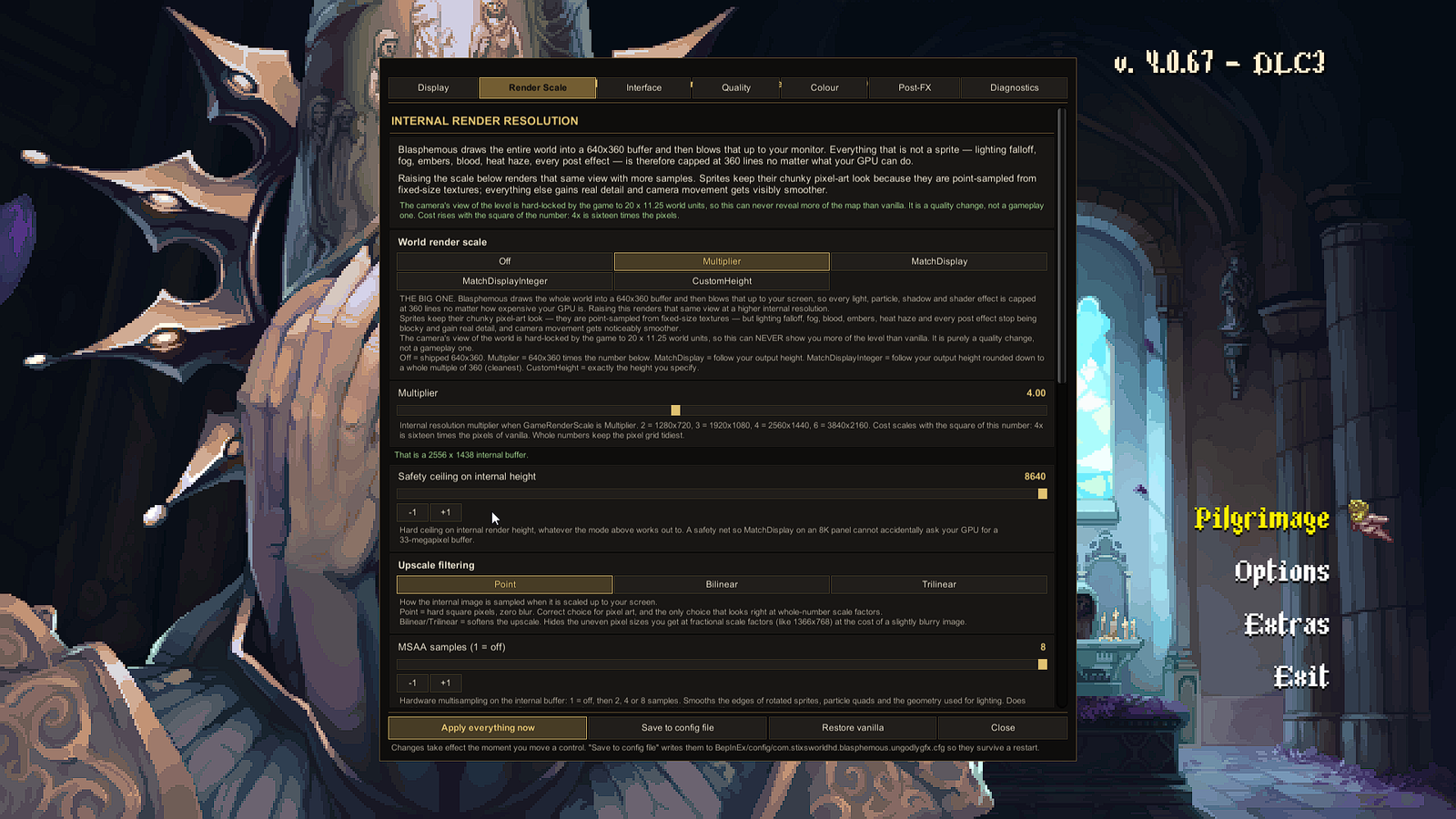
A gold panel titled with seven tabs: Display, Render Scale, Interface, Quality, Colour, Post-FX, Diagnostics. The mouse pointer appears with it.
F7
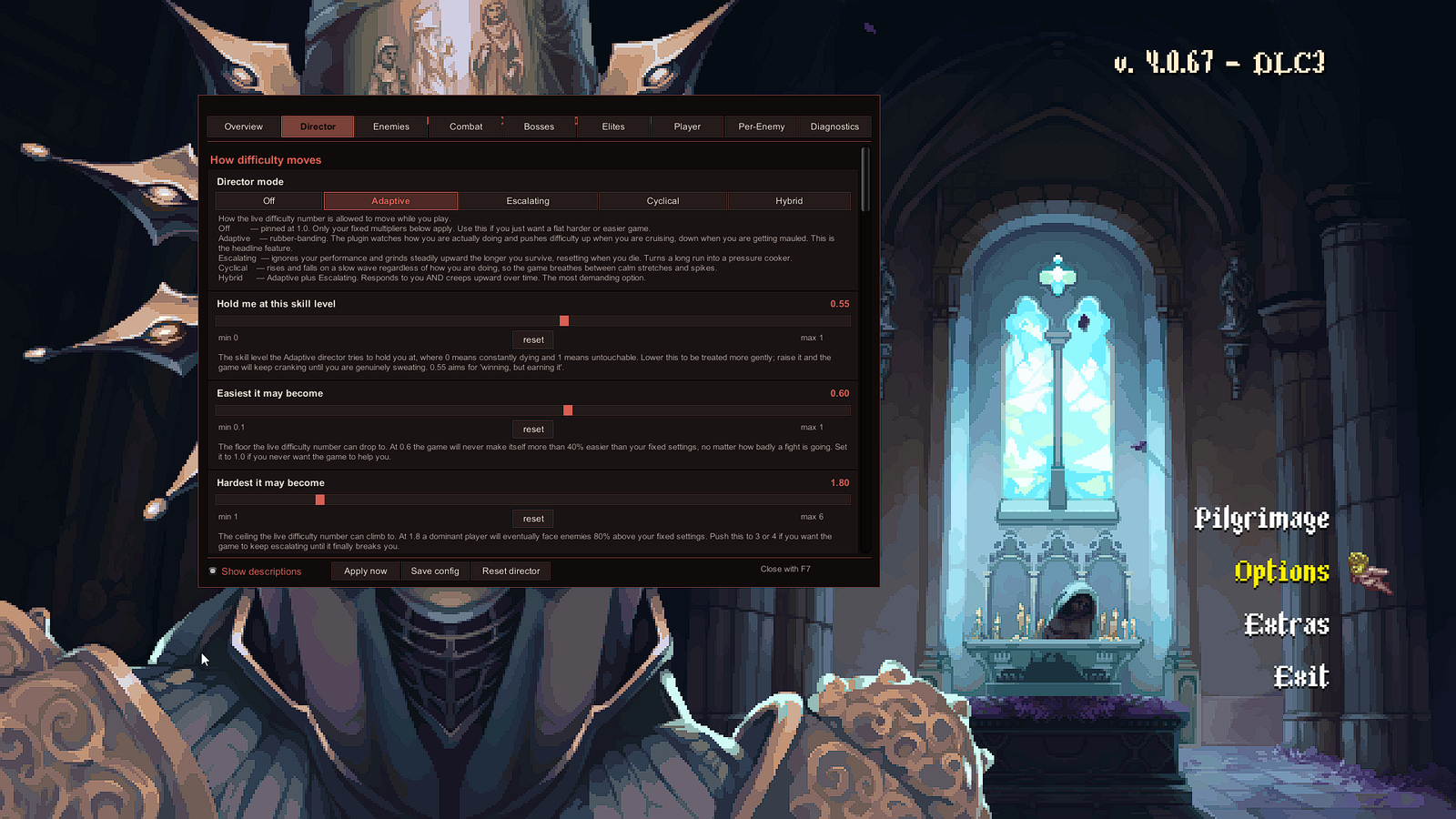
A crimson panel with nine tabs: Overview, Director, Enemies, Combat, Bosses, Elites, Player, Per-Enemy, Diagnostics.
F11
A small graphics readout in the corner. Press again to hide.
F8
A small difficulty readout in the corner, led by the live difficulty number.
Click to view at full size ↗Ungodly GFX on F10, Render Scale tab. The multiplier is at 4.00 and the panel reports the internal buffer it just built. Gold palette, seven tabs. Shown at 1280×720 — the original is 1920×1080.Click to view at full size ↗Ungodly Difficulty on F7, Director tab. Crimson palette, nine tabs, and every control carries its own plain-English description underneath. Shown at 1280×720 — the original is 1920×1080.
Both panels should be fully drawn: readable text, visible tab strip, sliders you can grab. A panel that appears as a
featureless dark rectangle is a known failure with a known cause and a switch that fixes it —
station 08 explains it.
Two settings each, to see whether it is doing anything, before you go anywhere near the other 160-odd dials.
First move
Ungodly GFX
Open F10 → Render Scale. Set
World render scale to Multiplier and the multiplier to 2. Apply. Everything that
is not a sprite — lighting, fog, embers, blood — stops being blocky. Then push to 3 or 4 if your GPU
is bored. Set Screen fit mode to PixelPerfectInteger and leave the rest alone for now.
Save it with Save to config file so it survives a restart.
First move
Ungodly Difficulty
Open F7 → Overview and press a preset.
Scourge is a firm step up; Ordeal is a serious one. Close the panel, press
F8 for the readout, and go and fight something.
Watch the number after UNGODLY DIFFICULTY. Cruising makes it climb. Getting mauled
makes it drop. That is the entire idea, and you can watch it happen.
✦Both panels apply live
Nothing needs a restart. Drag a slider and the game changes underneath the panel. Save to config file is
only about surviving the next launch — it has nothing to do with whether the setting is in effect right now.